Quick Start Guide
(2 Minutes)
This guide will cover everything you need to know when importing LayerFX for the first time, including how to view and set up the included demo scene.
Already tried out the demo scene and want to start building your own effects? Jump to the LayerFX Render Feature Setup Page.
Installation
Before installing LayerFX, ensure your project is on a supported version. Ensure your project is using the URP pipeline. HDRP and the Built-In Render Pipeline are not supported.
- Import the LayerFX.unitypackage file into your project.
- Wait for the project to compile.
Package Structure
Please visit the Package Contents Page to familiarize yourself with the package folder structure and what files may be safely removed from your project.
Setting Up the Demo Scene
To properly view LayerFX in action through the demo scene, a few additional setup steps are required. Follow these steps to get started!
1. Navigate in the Project Window to Assets/LayerFX/Samples/Scenes/.
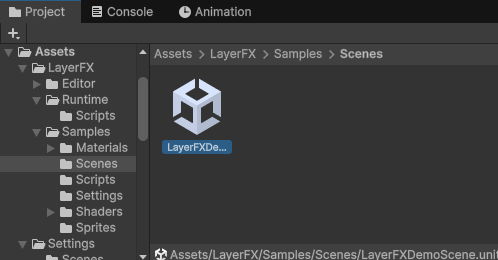
2. Drag the LayerFXDemoScene into the Hierarchy window. For best results, temporarily remove other scenes from the Hierarchy window.
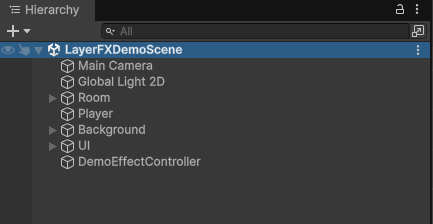
3. To properly view the LayerFX demo scene in action, the LayerFX sample renderer must be attached to your project's URP asset. To find your URP asset, go to Edit > Project Settings > Quality > Render Pipeline Asset and click on the URP asset.
4. Once you have located your project's active URP asset, find the Renderer List field under the Rendering dropdown.
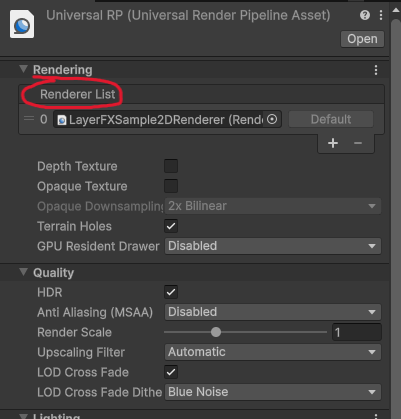
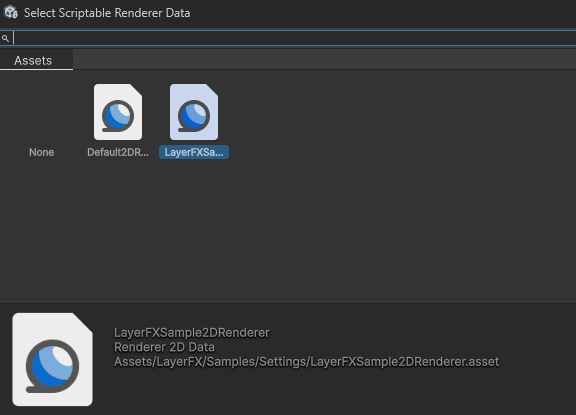
5. Add another renderer to the Renderer List field. Select the LayerFXSample2DRenderer. Set this renderer as the default renderer.
6. The demo scene is now ready. Press Play and use the Previous/Next buttons to cycle through the included effects.
The included sample renderer is preconfigured with LayerFX so you can try the demo scene immediately. Your own project does not need to use this renderer.
For detailed instructions on configuring your own renderer with LayerFX, please visit the Custom Render Pass Setup Page.